 SongPerformance
How to use SongPerformance
Every function, step by step. Words in yellow are the app’s own buttons.
Getting started
Copy your songs onto the tablet, for example into Documents/Songs. Subfolders are fine, and lyrics and tracks can be in different folders.
Open SongPerformance, tap Choose folder and choose that folder.
More folders (backing tracks in Music, an SD card): Settings → Add a folder. The search covers all of them.
New or changed files are picked up each time you open the app; only those are read again.
Finding a song
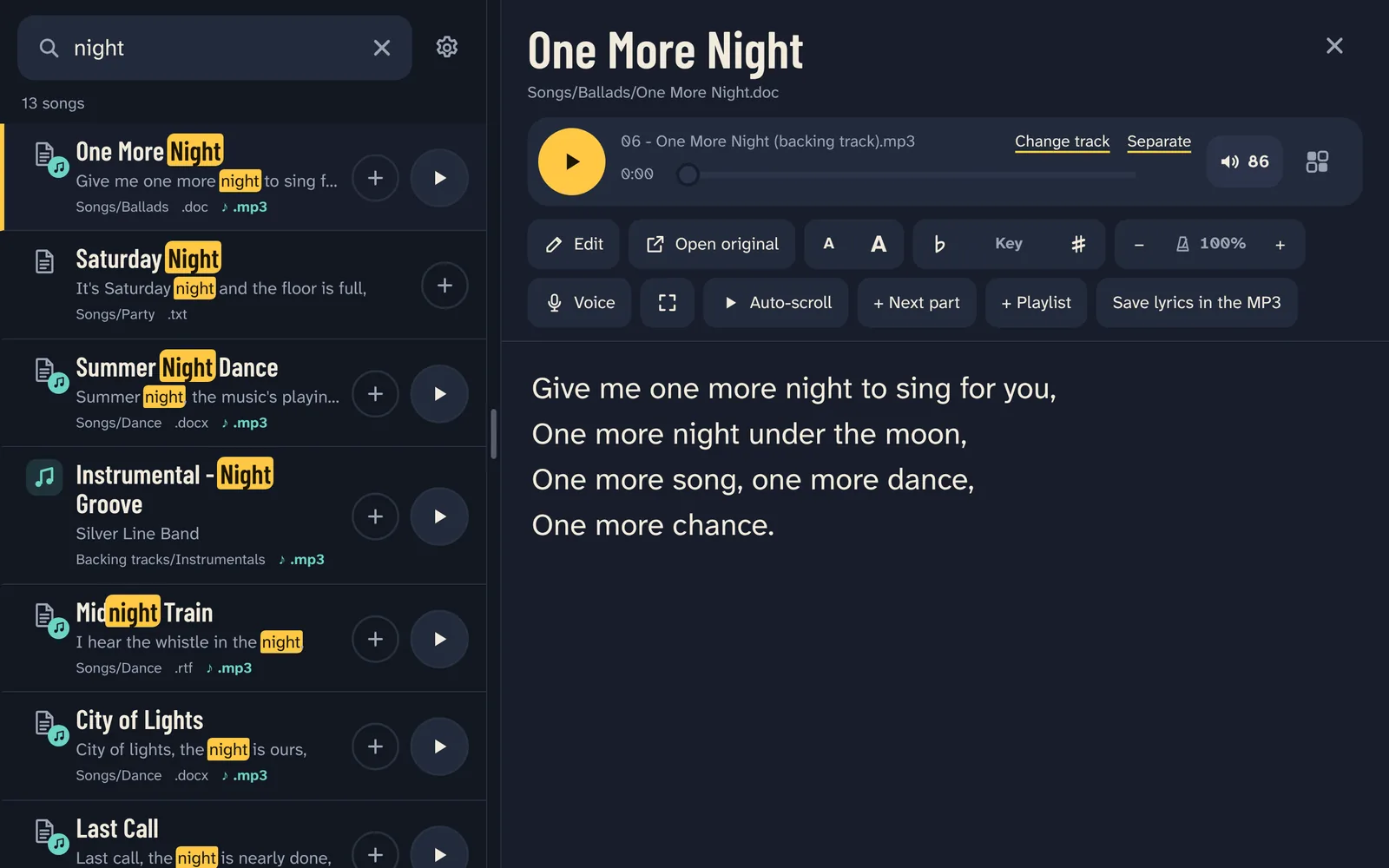
Type a few words from the title or from any line of the lyrics. Word order, capitals and accents don’t matter, and small typos still find the song. Enter opens the first result.
Without a search, the list shows your folders like a file manager (Folders) or all your songs from A to Z (A–Z).
Lyrics with the backing track
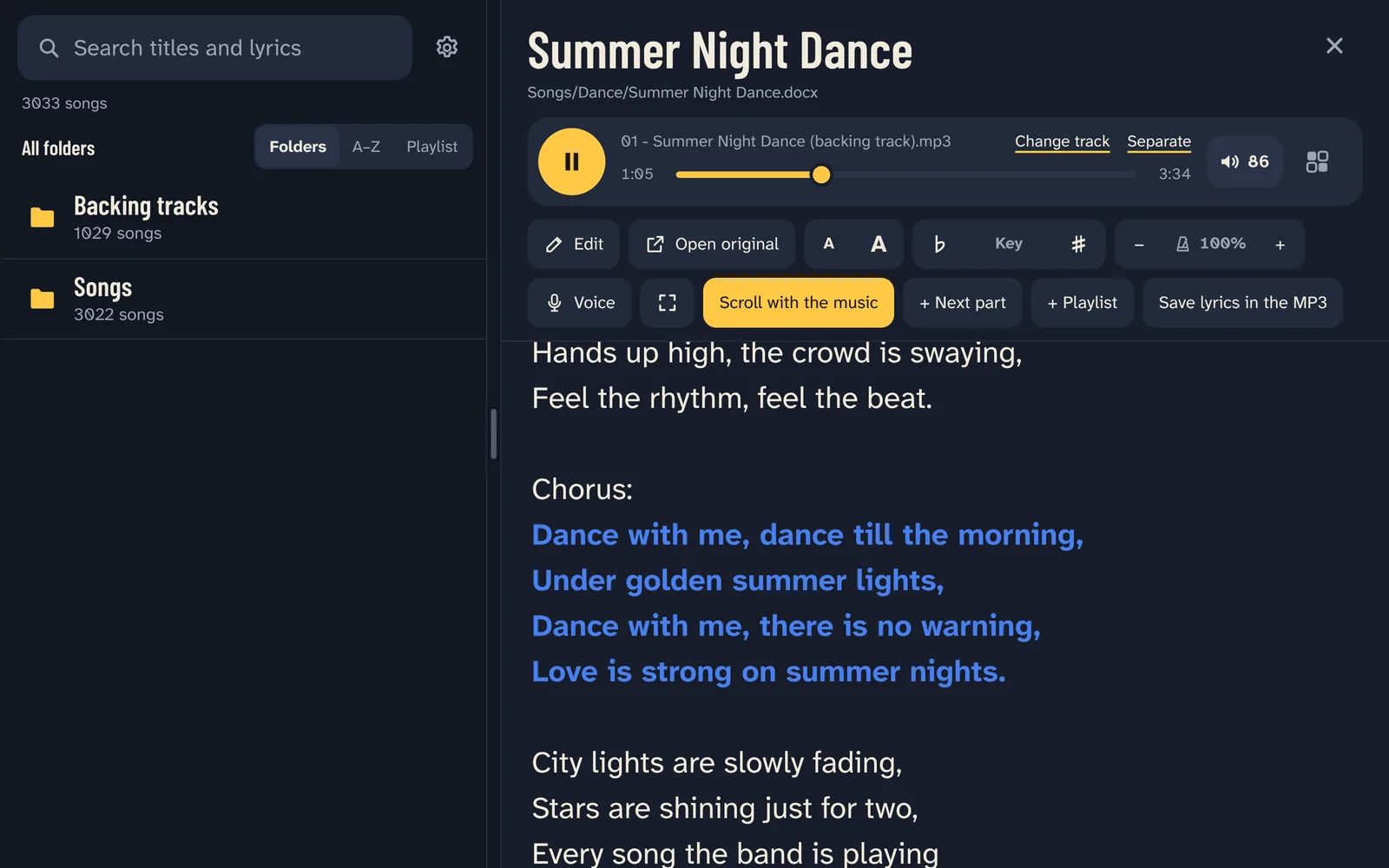
A lyrics file and a track with the same name go together: “02 – Summer Night (backing track).mp3” plays with “Summer Night.docx”. The ▶ button next to a song plays the track and opens the lyrics.
Scroll with the music: the lyrics follow the music. Auto-scroll scrolls them at a speed you choose. The full-screen button shows the lyrics alone, with a small bar to pause, skip and scroll. A A or two fingers change the size of the letters; two fingers also move the lyrics where you like.
The music keeps playing in the background, with controls on the lock screen and in the notifications. Page-turn pedals and keyboards scroll the lyrics.
Linking lyrics and tracks
Different names? Open the lyrics while their track plays and tap Link to …. Change track chooses another track, Add a backing track gives one to a song without it, and Separate splits lyrics that belong to another song.
Save lyrics in the MP3 writes the lyrics into the MP3 itself, so other players show them too. Lyrics found online: select them in the browser and share them to SongPerformance; they are saved next to the track playing. A track without lyrics also offers Paste lyrics.
Links are also kept in your song folder, so they move with it to another tablet.
Key and Speed
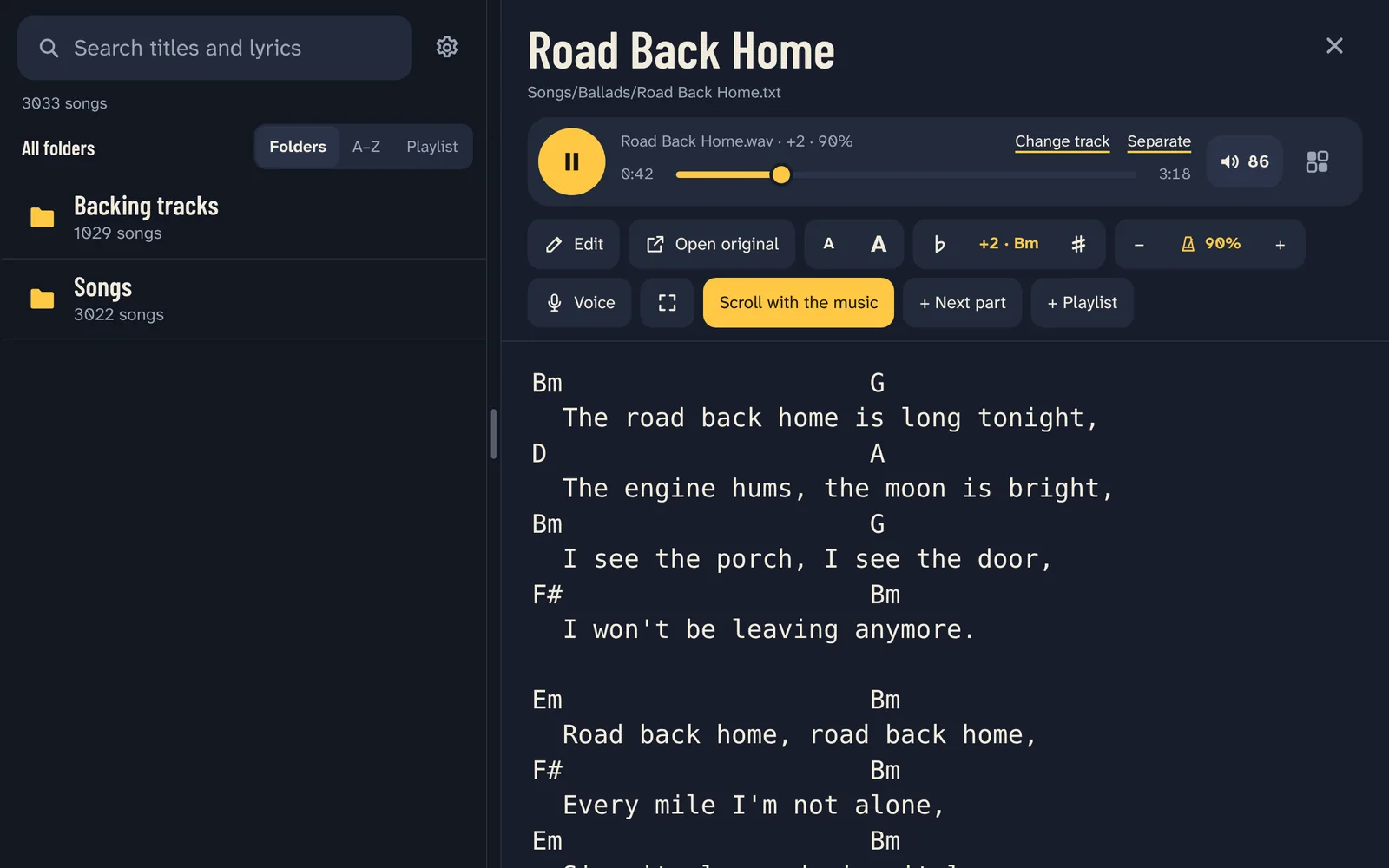
♭ and ♯ move the backing track a semitone at a time, up to an octave. Speed plays it from 50% to 150% without changing its key. The change is heard within half a second, from where the song is.
Chord sheets move with it: the chords stay above their words and are written the way the new key writes them (Bb in F, A# in F#; H in German songs, Do Re Mi in solfège). Tap the key to go back to the original.
The AI voice remover
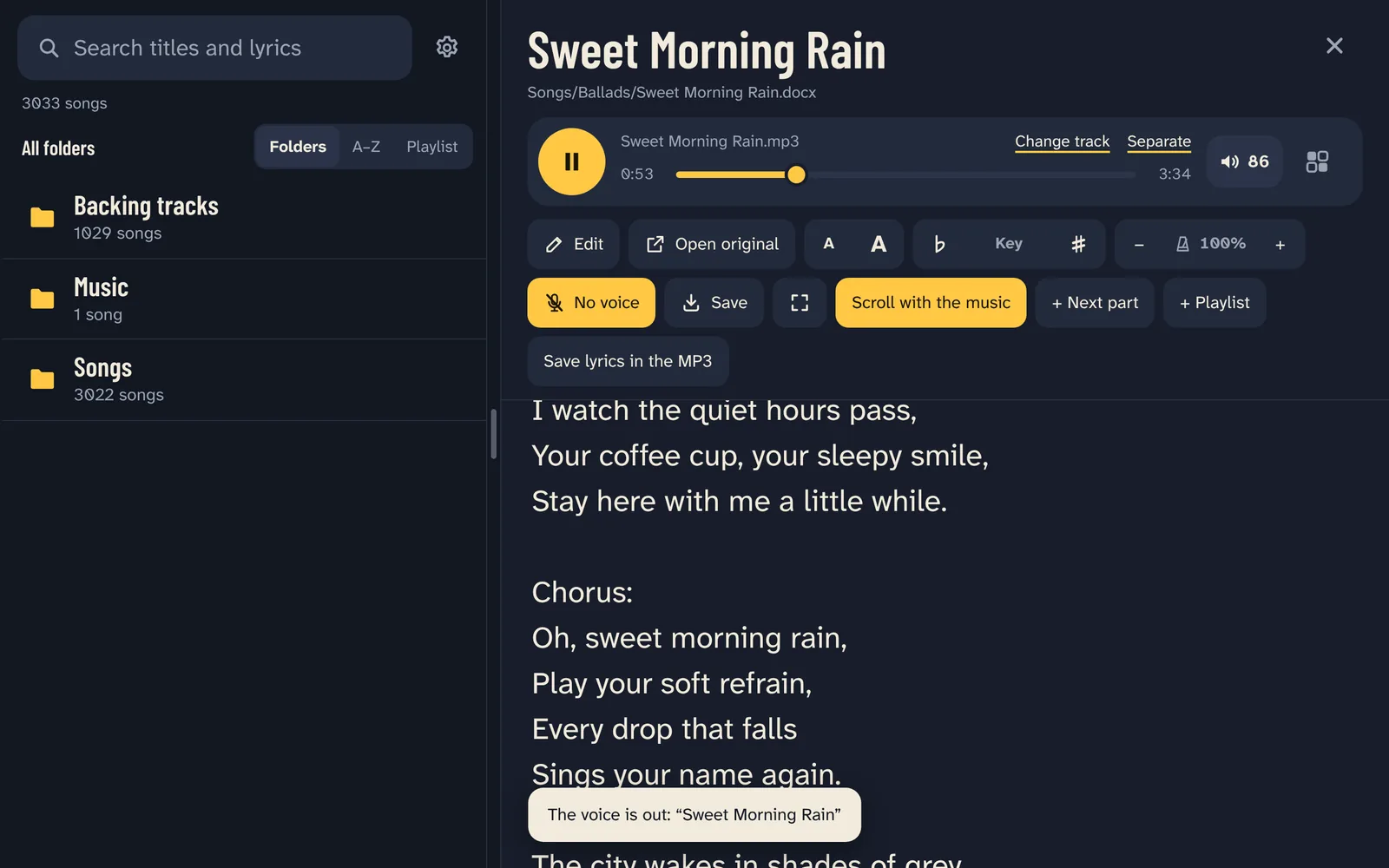
Voice, next to Key and Speed, takes the voice out of the song’s track, on the tablet, without internet. The first time takes a few minutes per song: a line under the button shows how far it got, and you can keep playing music or leave the app meanwhile.
After that, No voice and Voice switch at once, at the same place, in any key and speed. Save keeps a copy of the track without voice wherever you choose.
Settings → Songs without voice shows the space they take, with Save them all… and Delete them.
Playlists and hot buttons
+ next to any song adds it to the playlist (a long press puts it right after the song playing). Playlist shows the list: drag ≡ to reorder, × to remove, tap a song to play it with its lyrics.
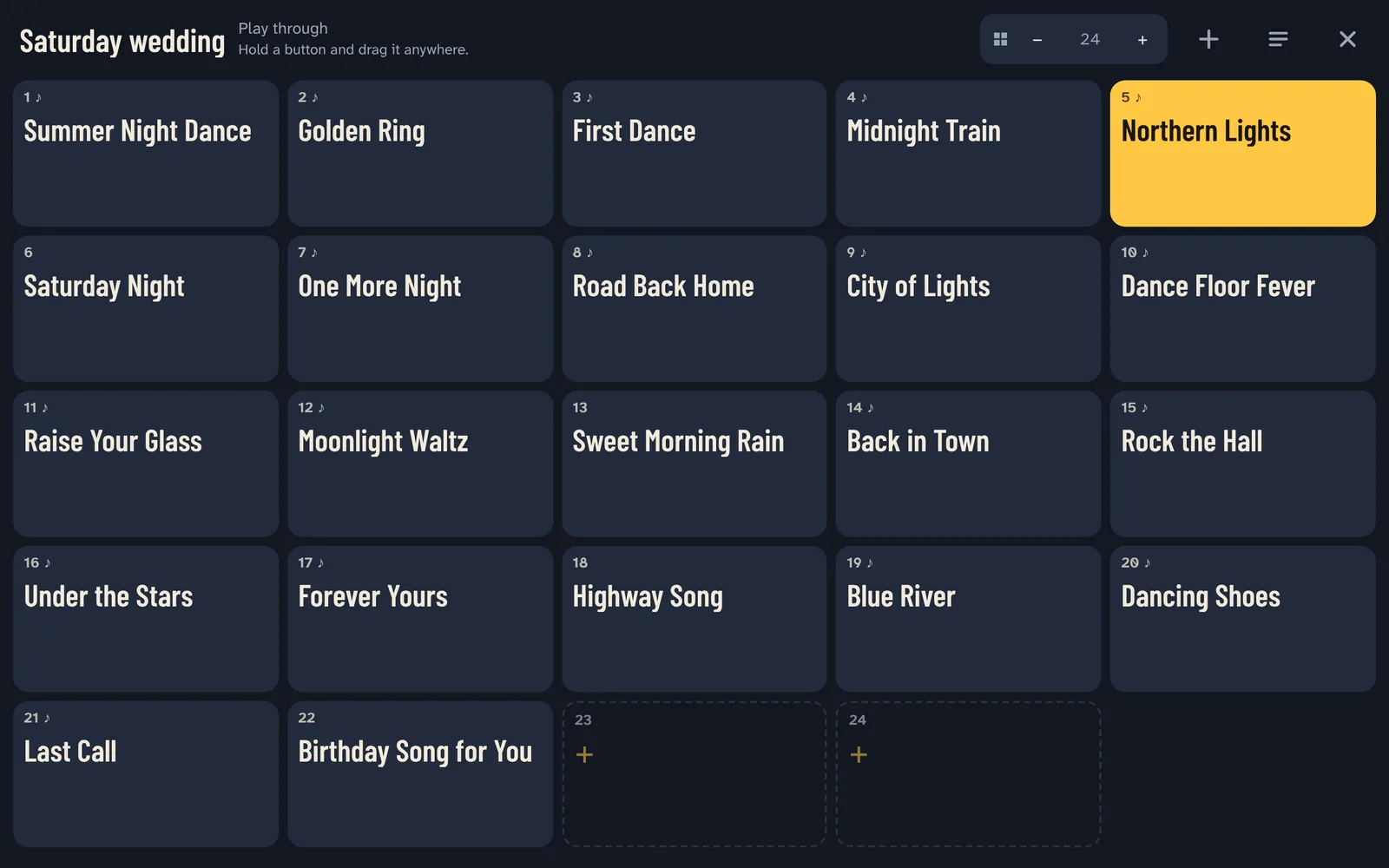
Hot buttons turns the playlist into big buttons: one tap plays a song; hold a button and drag it anywhere; − and + make the buttons bigger or smaller.
Play mode: Stop after each song (the next song waits, ready), Play through, Repeat the song or Repeat the playlist. Previous and next work on the player, the lock screen, headphones, and with the pedal at the end of the lyrics.
Samplers
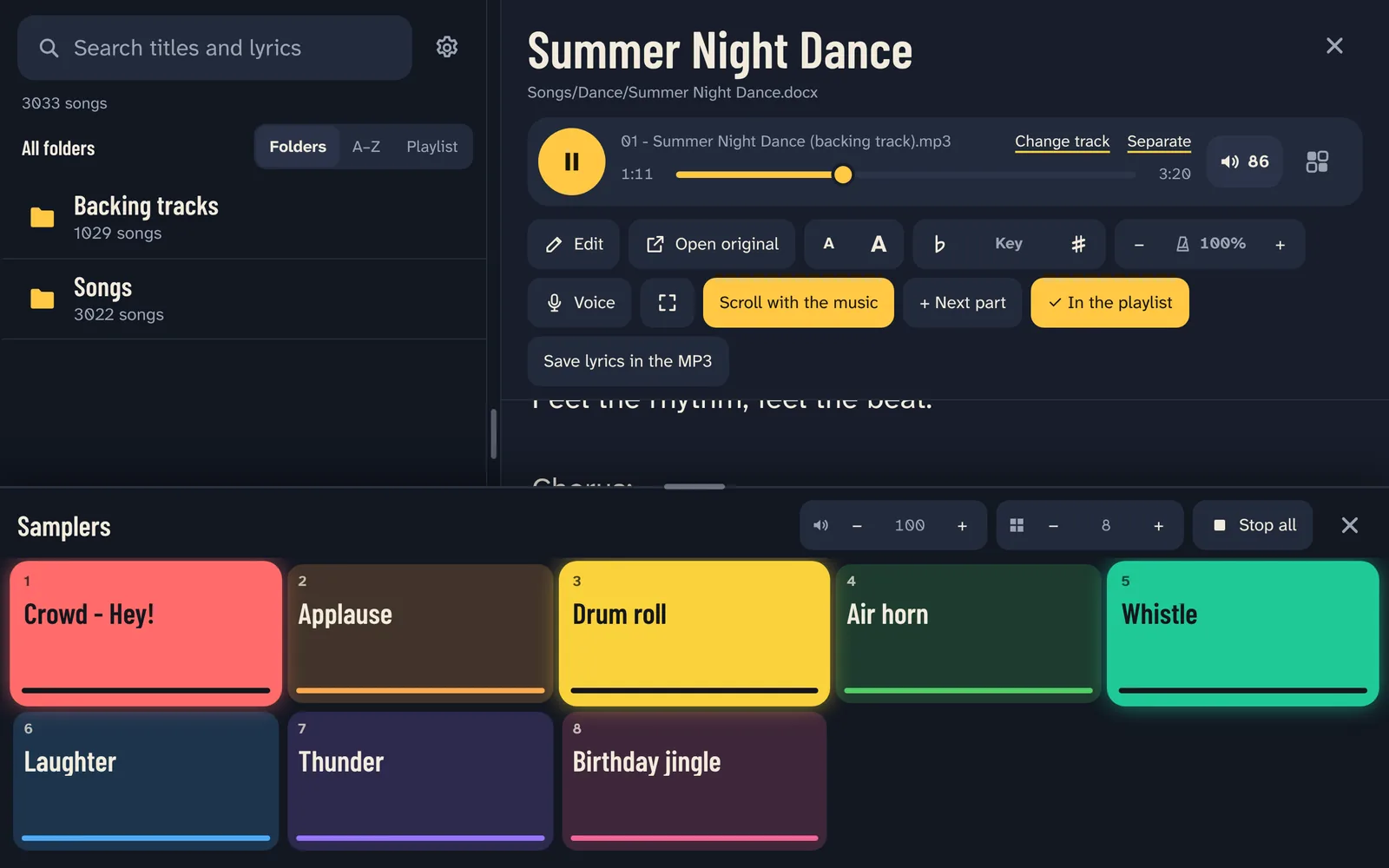
Pads for any sound (cheers, effects, a jingle) that play over the backing track, several at once. Each tap plays the sound from the start; Stop all cuts them.
The samplers have their own volume, and each pad has its own: slide the thin bar at its bottom. Drag the window’s top edge to make it taller or lower.
Two windows and medleys
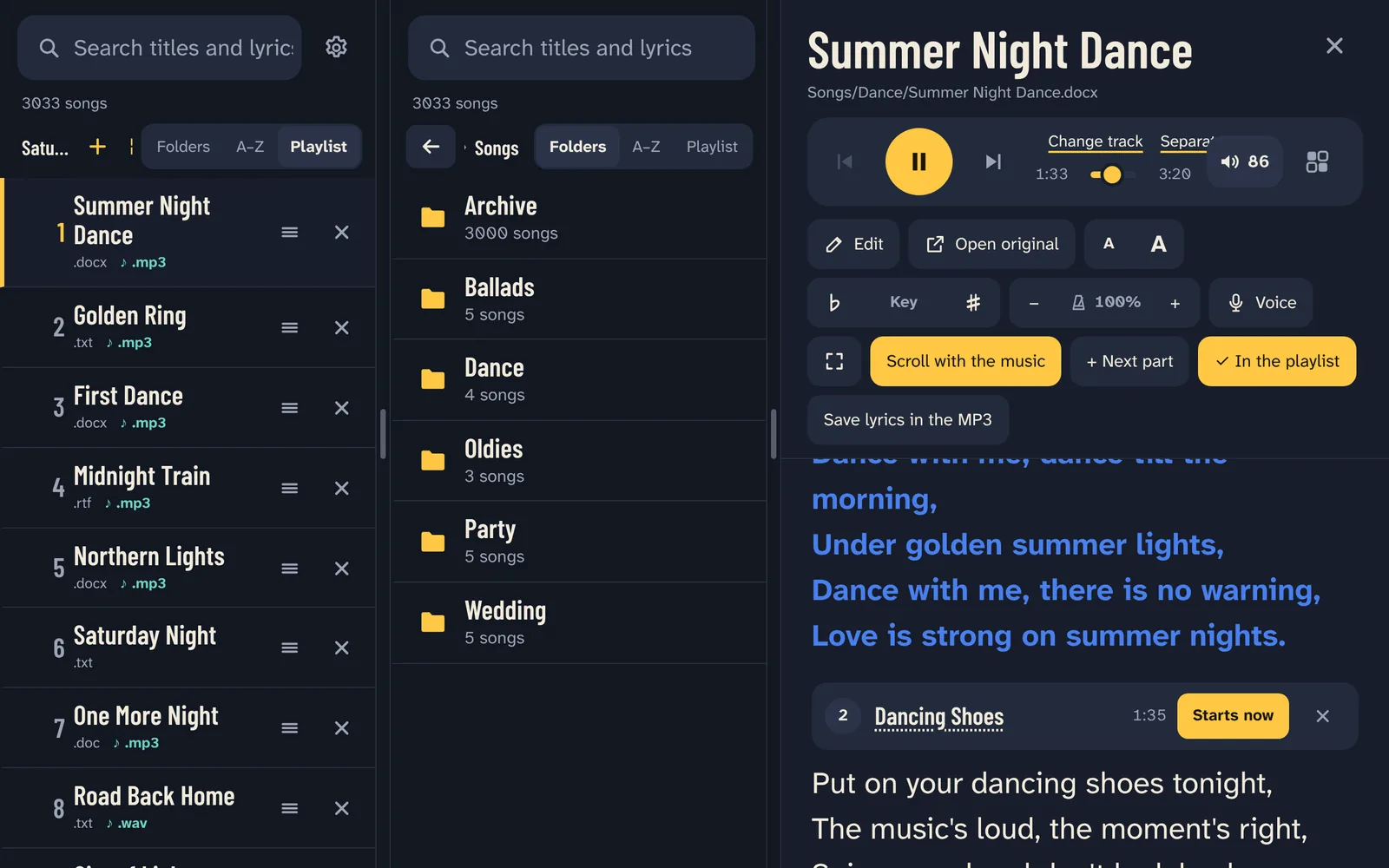
Settings → Song lists → Two windows: two lists, each with its own search and folder. Play from one while you prepare songs in the other. Drag the borders to make them wider or narrower.
A medley (one track, several songs): open the song and tap + Next part to add the next song’s lyrics. While the track plays, Starts now marks where that part begins. The lyrics then follow the part playing.
Sheet music and chord sheets
A PDF without text (a score, a scan) opens as its pages, and photos of scores (.jpg, .png) are songs too. A A or two fingers make the pages bigger or smaller; Whole page fits a whole page on the screen; Dark pages turns them white on black for a dark stage; the pedal turns the pages.
A PDF with text shows its words (and they can be searched); Pages shows its original pages instead. A score with a backing track of the same name plays with it, and its pages follow the music.
Editing lyrics
Edit opens the song’s words as text. Save writes them into the same file, and a Word file keeps its look. Save as… makes a new file next to it, and the backing track goes with it. The version before is kept in the app: Undo in the message.
Settings
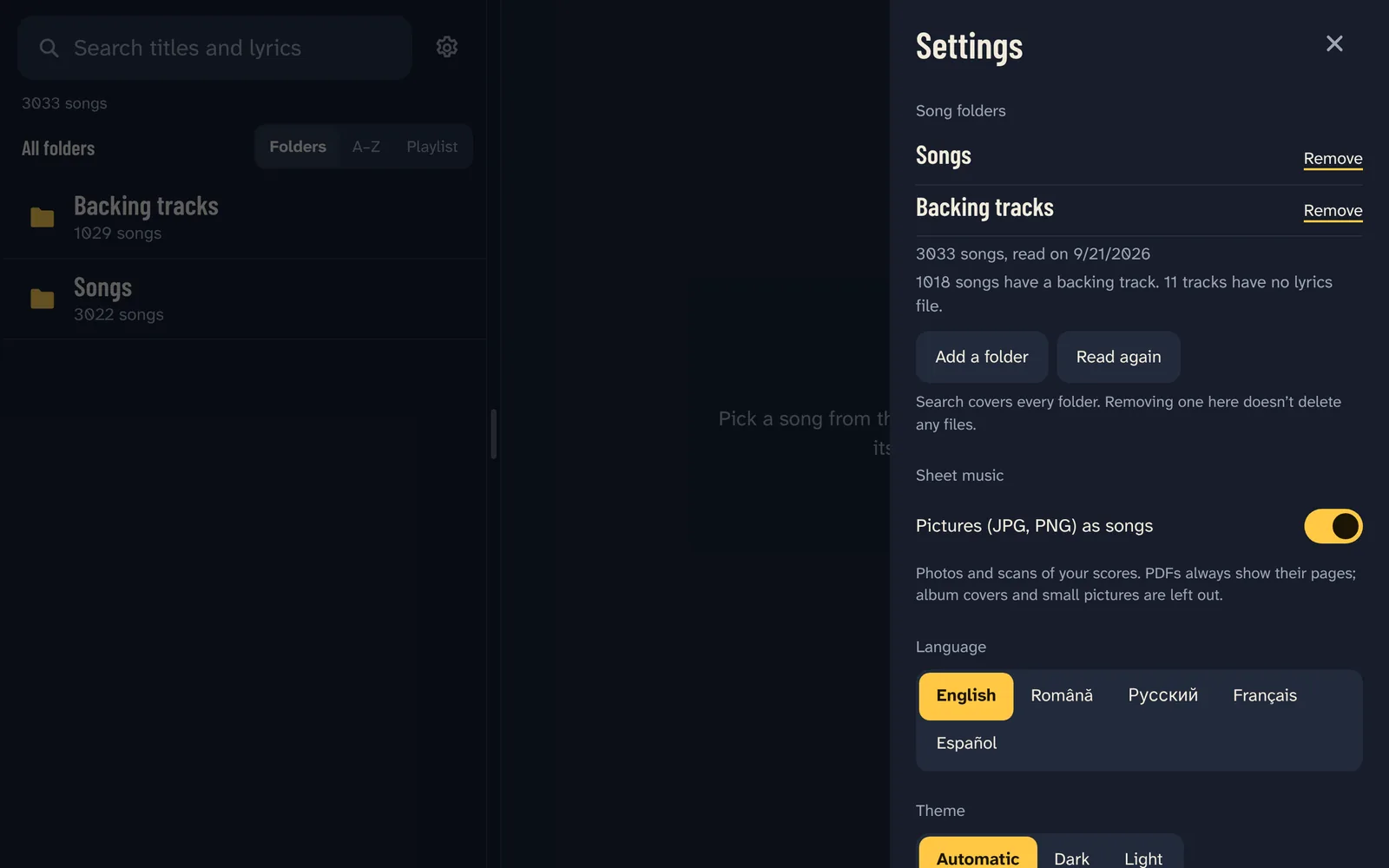
Fade between songs: a song started while another plays crossfades with it (off, or 1 to 10 seconds). Volume buttons move 1 point at a time: the tablet’s volume buttons move the app’s own volume one point at a time.
Also: Lyrics font and Lyrics size, Theme, Language, Keep the screen on while the app is open, Song title above the player and Show recently opened songs.
Lite and Full
The first 7 days include everything. Then you choose:
Lite ($19.99): Find your songs, lyrics that scroll with the music, backing tracks, one playlist.
Full ($49.99): Everything in Lite, plus: AI voice remover, Key and Speed, hot buttons, unlimited playlists, samplers, two windows and medleys, sheet music, lyrics editing.
In Lite, what Full adds keeps its place with a small lock. Settings → Your version shows your version, with the upgrade to Full ($29.99).